
According to Statista, Monero was processed on the blockchain 30,000 times a day in February 2025. This asset is still very popular among users, although it has experienced various ups and downs. In 2024, Binance categorized Monero and Zcash as high-risk assets. This category includes assets that are subject to high volatility and risk, the platform said in a statement. Also this year, Kraken officials said they were forced to exclude Monero from listing in Europe due to increased regulatory pressure. As such, regulation has affected Monero’s market cap and other indices.
22.08.2025

Monero (XMR) is the first cryptocurrency to focus on providing true privacy. Launched in 2014 as a fork of Bytecoin, this coin uses advanced cryptographic technologies to conceal transaction details. Every user is anonymous by default — the sender, recipient, and amount are hidden using technologies such as stealth addresses and ring signatures. This means that all your transactions are confidential and untraceable, which has made it popular as the most private coin on the market.
Monero functions as electronic cash, allowing for fast and inexpensive payments anywhere. Its strong privacy features and active community (with hundreds of participants) have made Monero the best choice for users who value financial anonymity.
Types of Monero wallets (desktop, mobile, web wallets, hardware wallets, paper wallets)
There are several types of Monero wallets, each suited to different needs. All Monero wallets described here are non-custodial, which means that you control your own keys and funds.
Desktop wallets
Software applications for your PC (Windows, Mac, Linux). They often provide the full range of Monero features.
Pros: full control over your wallet, the ability to run a full node for maximum privacy, and the fact that they are usually developed or reviewed by the Monero community.
Cons: require the use of a computer, initial setup can be slower, and they take up more space and memory than lighter wallets.
Mobile wallets
Smartphone apps (Android/iOS). They are convenient for everyday use and access on the go.
Pros: very user-friendly interface, portability, and quick setup (no need to download the entire blockchain).
Cons: slightly less secure than offline or hardware options (phones can be lost or infected with malware), and some mobile wallets rely on remote servers for blockchain data, which can lead to some information leakage (more on this below).
Web wallets
Wallets accessible via a web browser (or web interface). The main example is MyMonero, the official lightweight wallet service based on Monero.
Pros: no software installation required, no need to synchronize the blockchain (the web service scans the blockchain for you), and you can access your wallet from any device via the website.
Cons: you must trust the web service to handle viewing your transactions.
There are also hardware wallets (physical devices such as Ledger or Trezor) that store your Monero private keys offline) and paper wallets (a cold storage method where you create a Monero wallet offline and print/write the keys on paper).
In this article, we will look at the installation process for the most popular types, including desktop, mobile, and web wallets.
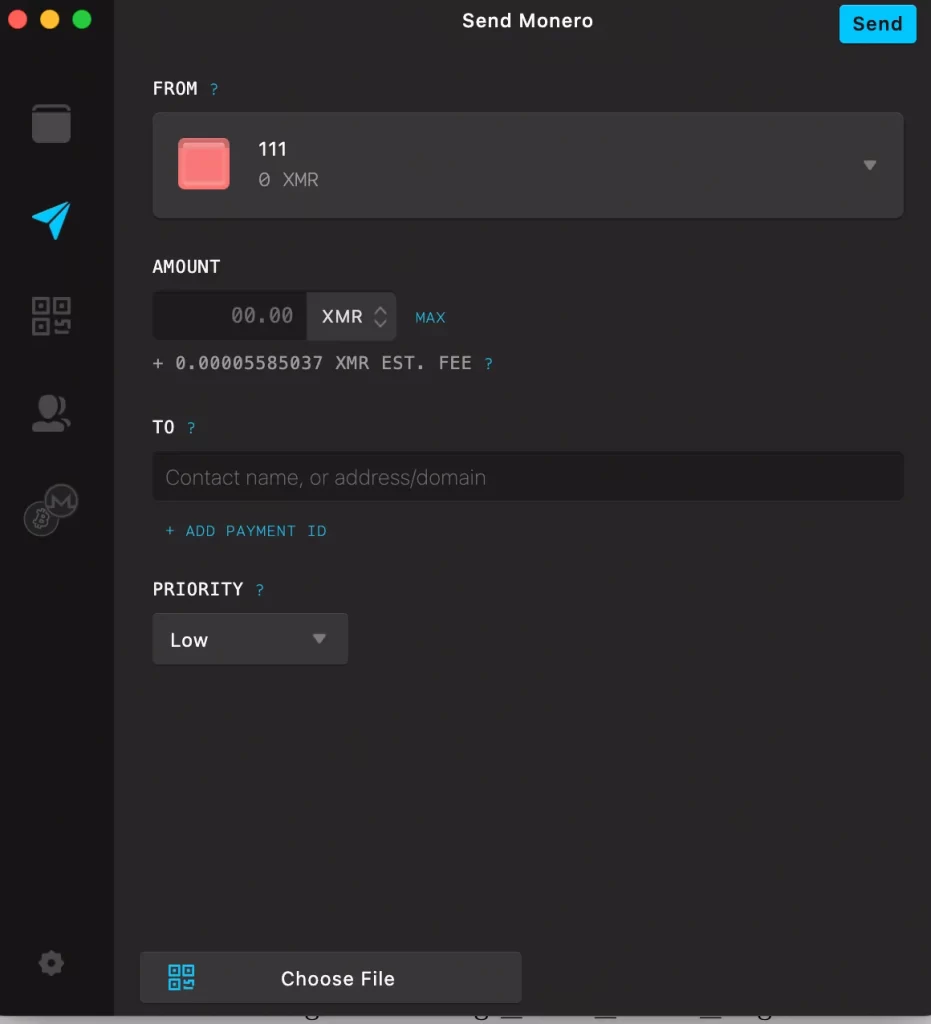
Setting up a Monero desktop wallet (Monero GUI)
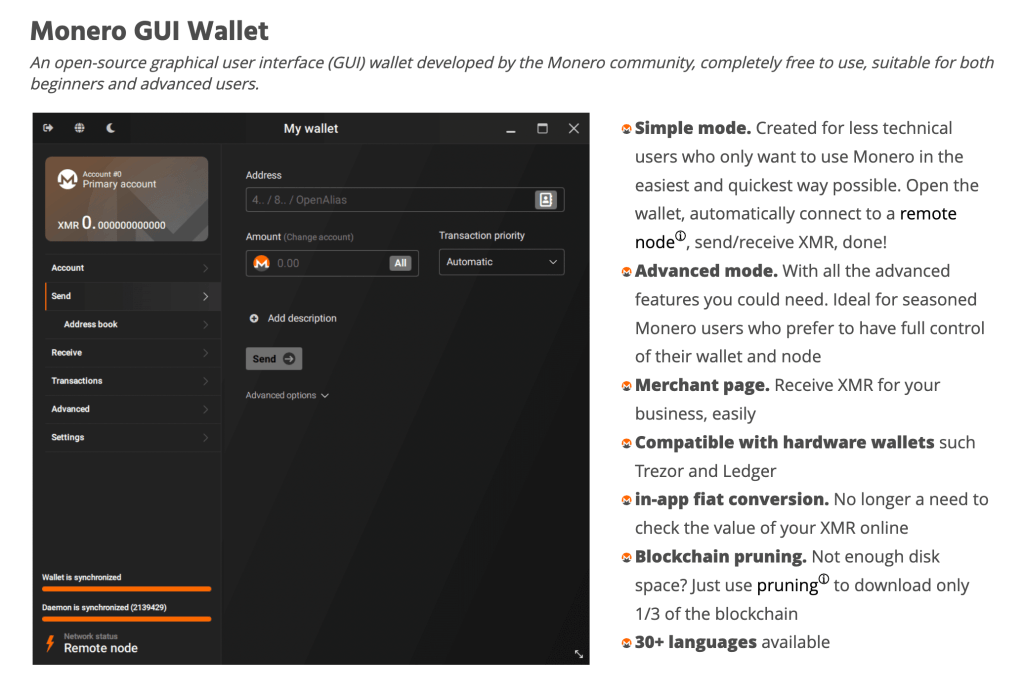
Desktop wallets offer a good balance between security and functionality. They have a simple mode (easy setup with automatic connection to the Monero network) and an advanced mode (for those who want full control over nodes and settings).
Download the official wallet: visit the Monero download page and download Monero GUI for your operating system (Windows, macOS, or Linux). Always download from the official website to avoid malware. Tip: The GUI wallet is free and open source, supported by the Monero community, so it’s a reliable starting point.
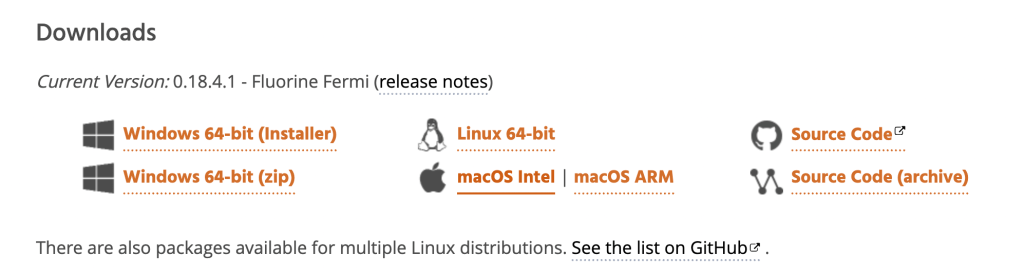
Verify the download (recommended): for security reasons, it is strongly recommended to verify the integrity of the file before installation. The Monero website provides SHA256 hashes and GPG-signed checksums for the wallet.
Install and launch the wallet: Run the installer or unzip the downloaded archive and launch the Monero GUI application. If your OS or antivirus asks for permission, allow the program to run — note that some antivirus programs may mistakenly flag crypto wallets.
Creating a new wallet: When you launch Monero GUI, it will ask if you want to create a new wallet or restore an existing one. Select “Create New Wallet.” You will be prompted to choose a wallet name and an optional password. The program will then generate a 25-word seed phrase for your new wallet. Write this seed phrase down on paper (not just on your computer) and store it in a safe place.
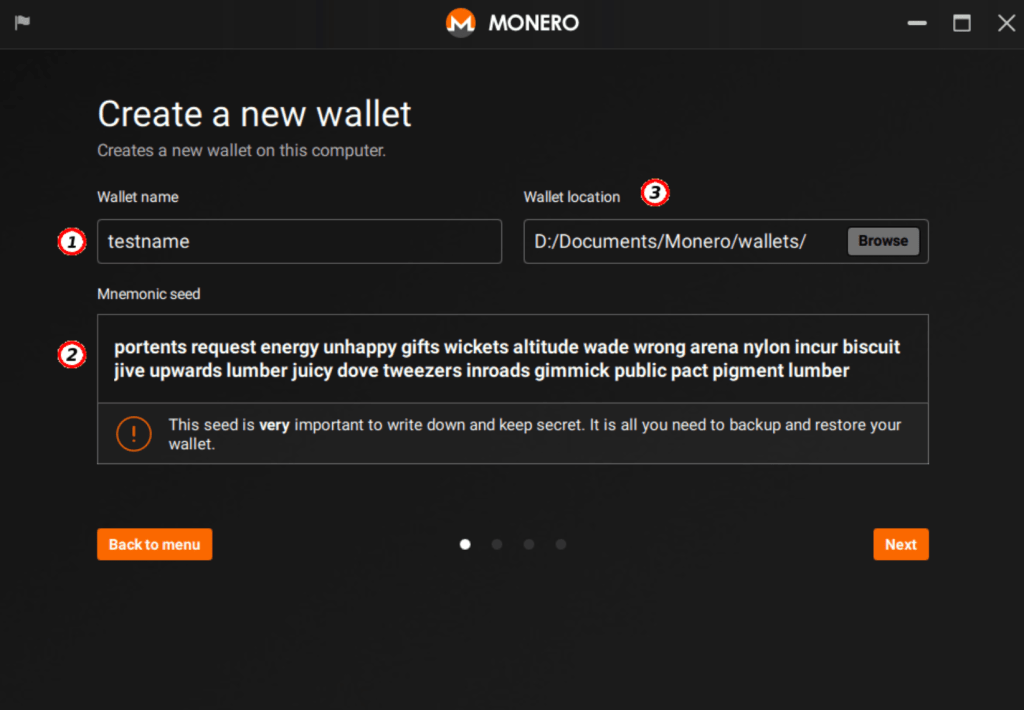
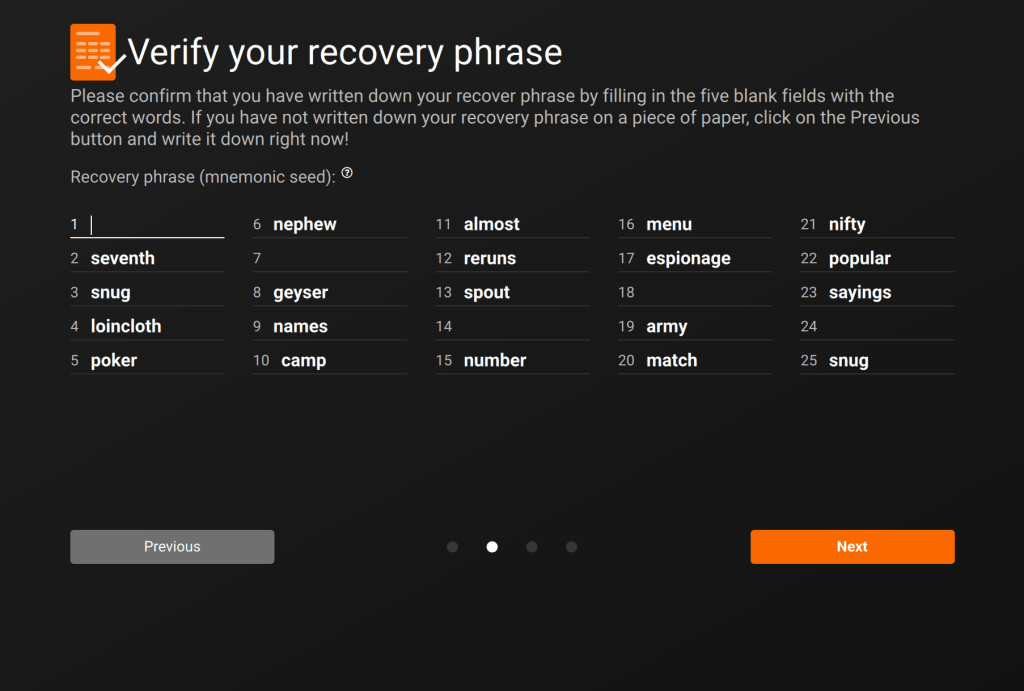
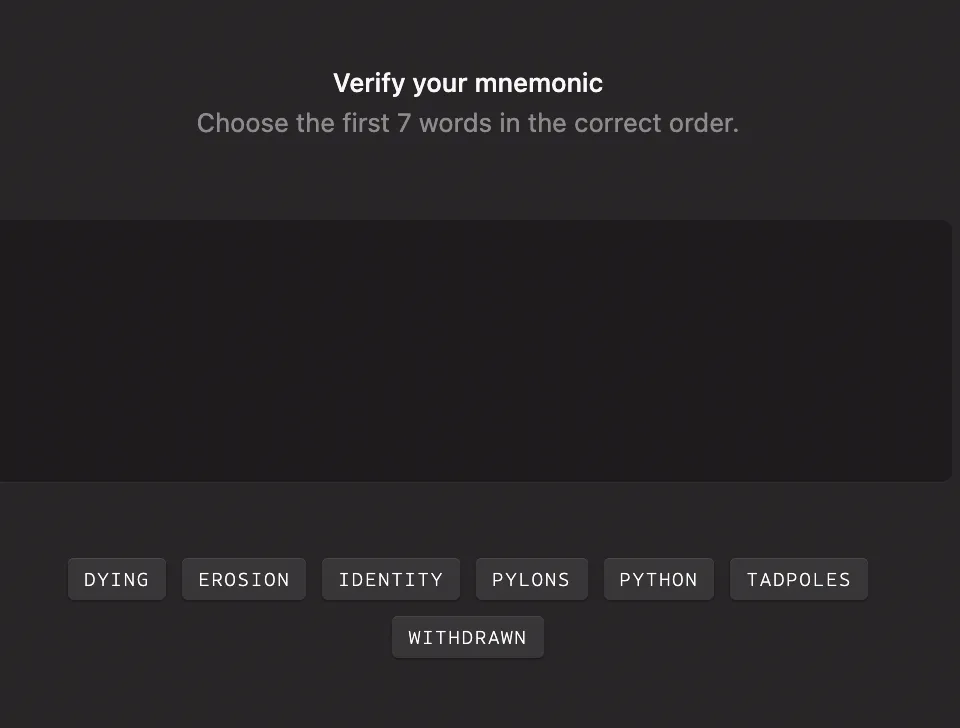
Confirm the Seed Phrase: The wallet may ask you to confirm some of the seed words to ensure you recorded them correctly. Take your time and double-check each word. (Many wallet interfaces, like MyMonero’s, will prompt you to select the correct words in order as a safety check). Never skip backing up your seed phrase!
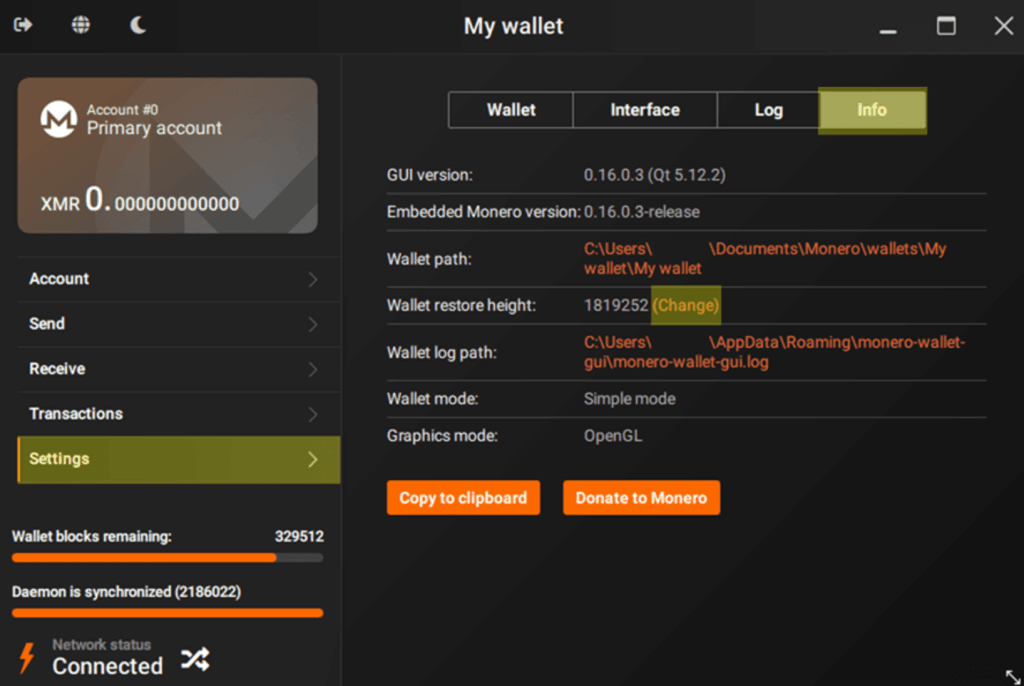
Connect and Sync: In Simple Mode, the Monero GUI will automatically connect to a remote node to start synchronizing with the Monero . This means it will quicky fetch the latest blocks and your balance without downloading the entire ~100GB blockchain. You’ll see a status bar for synchronization – wait until it’s ~100% to ensure your wallet is up-to-date.
Setting up a Monero mobile wallet (iOS/Android)
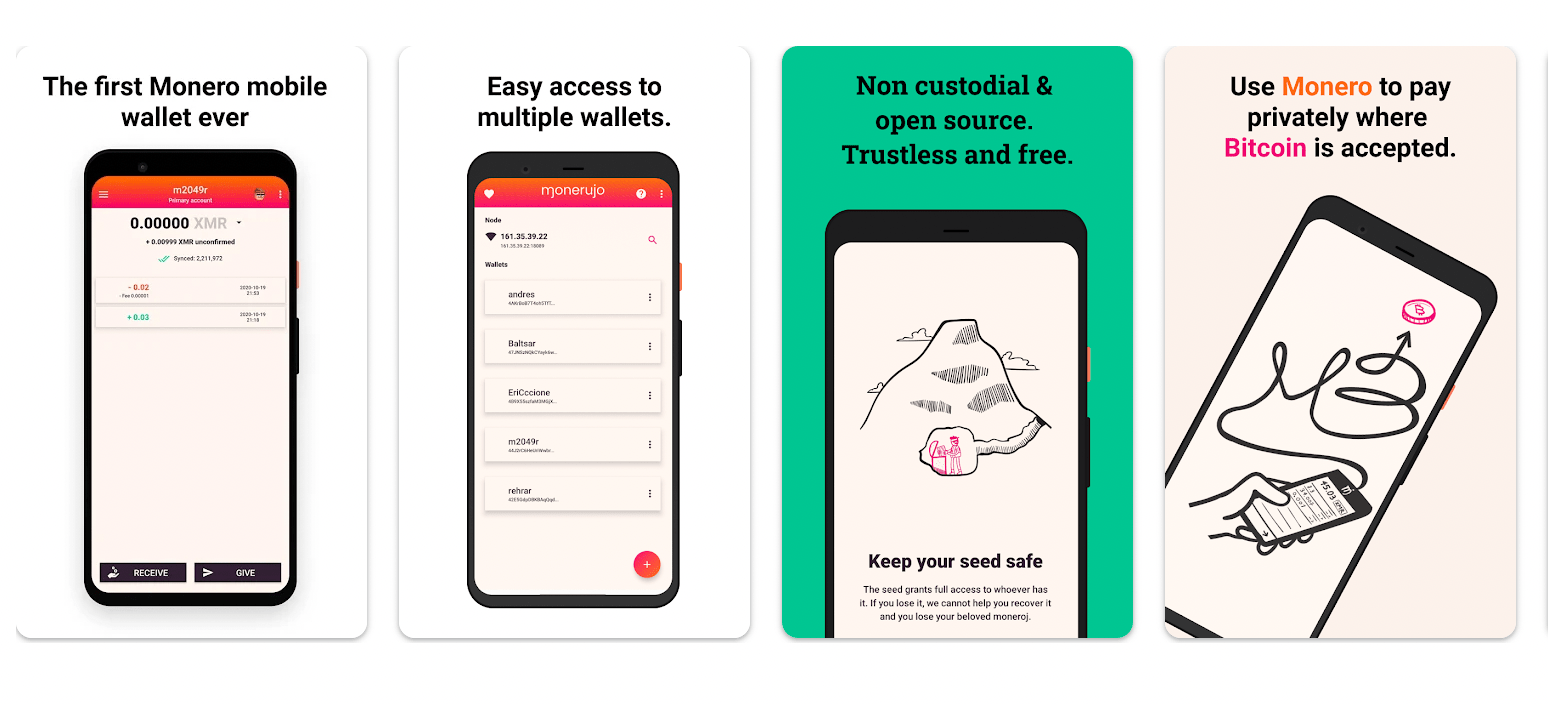
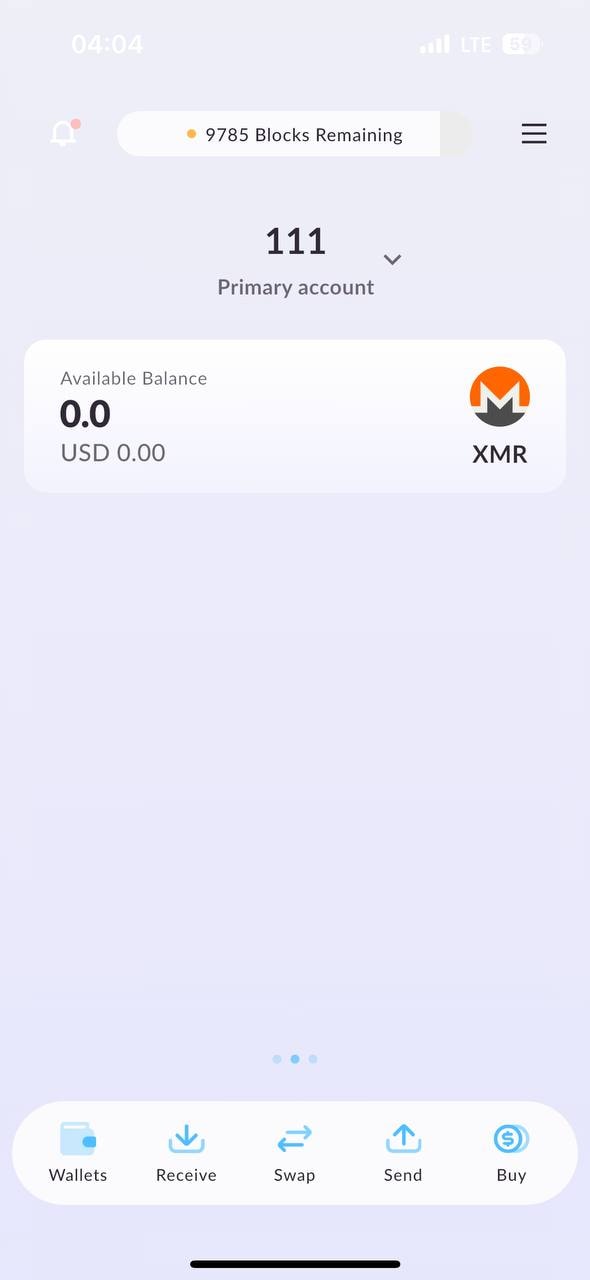
Mobile wallets are perhaps the easiest way to get started with Monero. They allow you to manage XMR on your smartphone using a convenient app. For beginners, there are two popular options: Monero.com Wallet (from Cake Wallet) and Monerujo:
Monero.com/Cake Wallet: Available for both iOS and Android, this is a well-established Monero wallet (Cake Wallet) that even uses the Monero.com domain for its Monero-focused app. It is non-custodial and widely trusted by the community.
Monerujo: A long-standing open-source Android wallet for Monero. It is also non-custodial and allows for advanced features such as managing your own nodes or connecting to custom remote nodes, while still being simple enough for basic use.
Both of the above wallets use local synchronization by default, which means that they connect to remote nodes but do not transmit your private keys — the app scans the blockchain on your device, which is good for privacy.
Install the app: go to the official app store for your device (Google Play Store for Android, Apple App Store for iOS). Search for “Monero.com Wallet” (for Cake Wallet) or “Monerujo” and make sure the publisher is correct (Cake Technologies or Monerujo developer). Avoid downloading APKs from random websites — stick to official sources to avoid fake wallet apps.
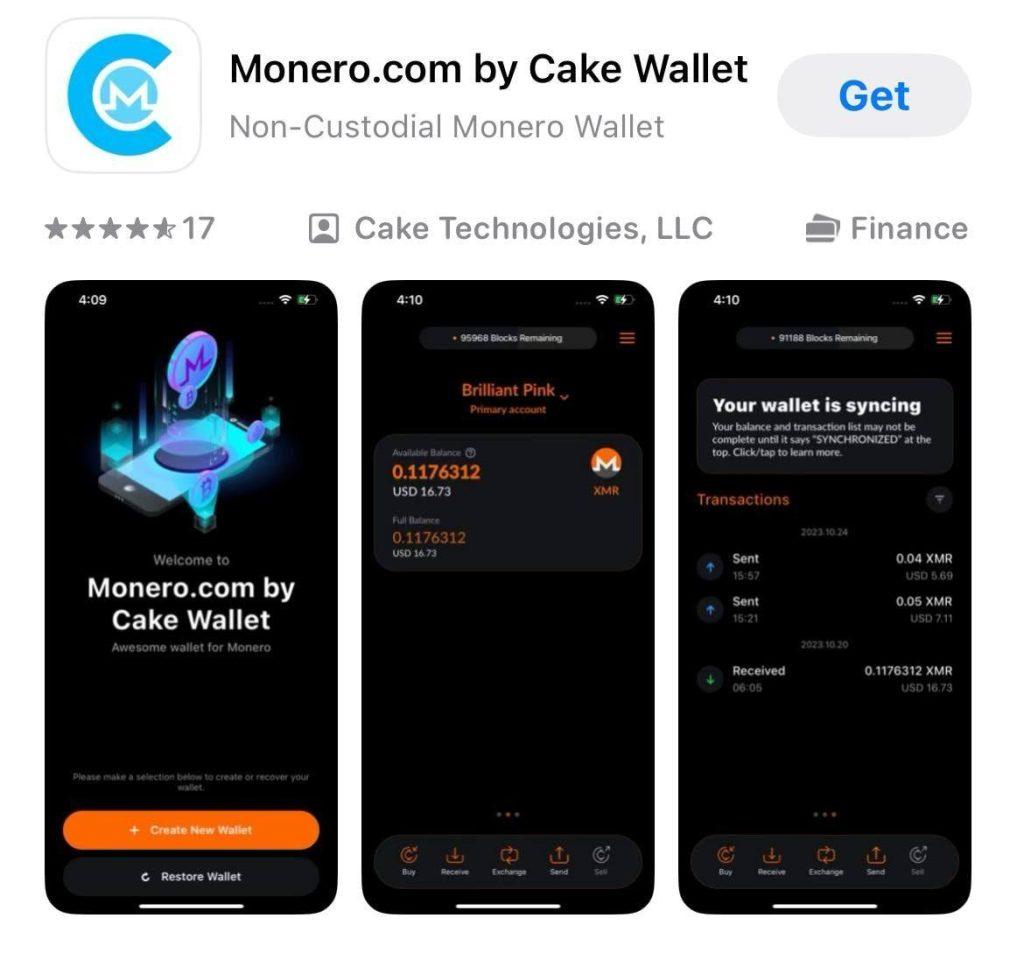
Create a new wallet: open the app. You will usually see an option to “Create a new wallet” or “Get started.” Tap on it.
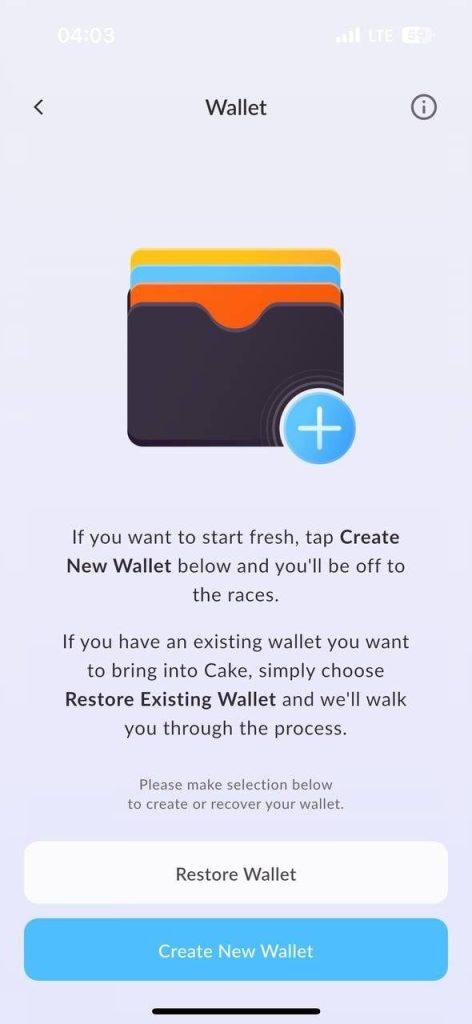
The app will generate a new Monero wallet for you, which, like a desktop wallet, includes a 25-word seed phrase. Follow the instructions on the screen: for example, Cake Wallet will display 25 words and then ask you to confirm several of them.
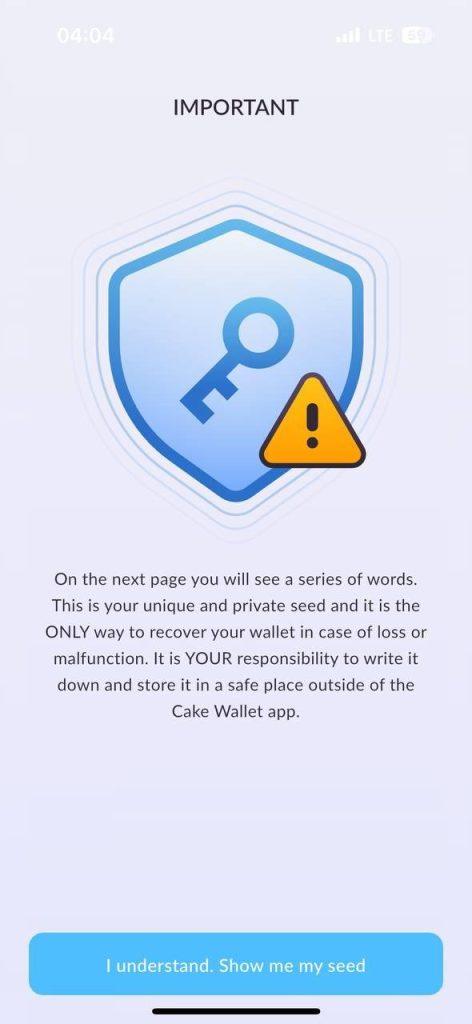
Write down all the words on paper (in order) and keep them in a safe place. Do not take a screenshot of the seed phrase, as images on your phone can be copied to the cloud or viewed by apps. The app may also ask you to set a PIN or password for quick access — choose a strong PIN that is not easy to guess.
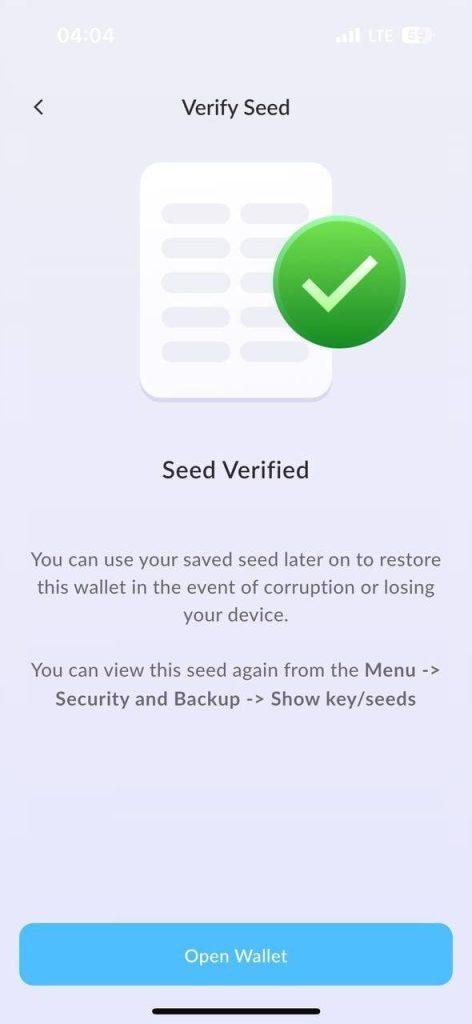
Backup and security: Most mobile wallets will remind you to back up your seed phrase (some even make you enter “Yes, I have written this down” to continue). This is very important because if you lose your phone or delete the app, the seed phrase is the only way to recover your funds. Treat this recovery phrase with the same care as your bank account password. Keep the paper in a safe place (or even make two copies and store them in different safe places).
Wallet synchronization: the app will connect to the Monero network (usually via remote nodes by default, managed by the wallet provider or community). It will then scan your address’s transactions. The first time, synchronization may take a few minutes. After that, it will update relatively quickly each time you open it. You will usually see a progress indicator (e.g., “Scanning blockchain: 80%…”) — wait until it finishes to see the correct balance.
Using a web wallet (MyMonero)
A web wallet allows you to manage Monero through your browser, which may be the fastest way to get started without installing any software. MyMonero is the main web wallet (and lightweight wallet) for Monero, created with the participation of the main Monero team.
Accessing the official web wallet: open your browser and go to MyMonero.com. Important: double-check the URL to avoid phishing sites. You can also go to the site via links on the official Monero website. On the MyMonero website, click “Use Web Wallet” (or you may be redirected to the web wallet page directly).
Create a new account/wallet: on the MyMonero web wallet page, you will see the option “Create a new wallet” (or “Create an account”). Click on it.
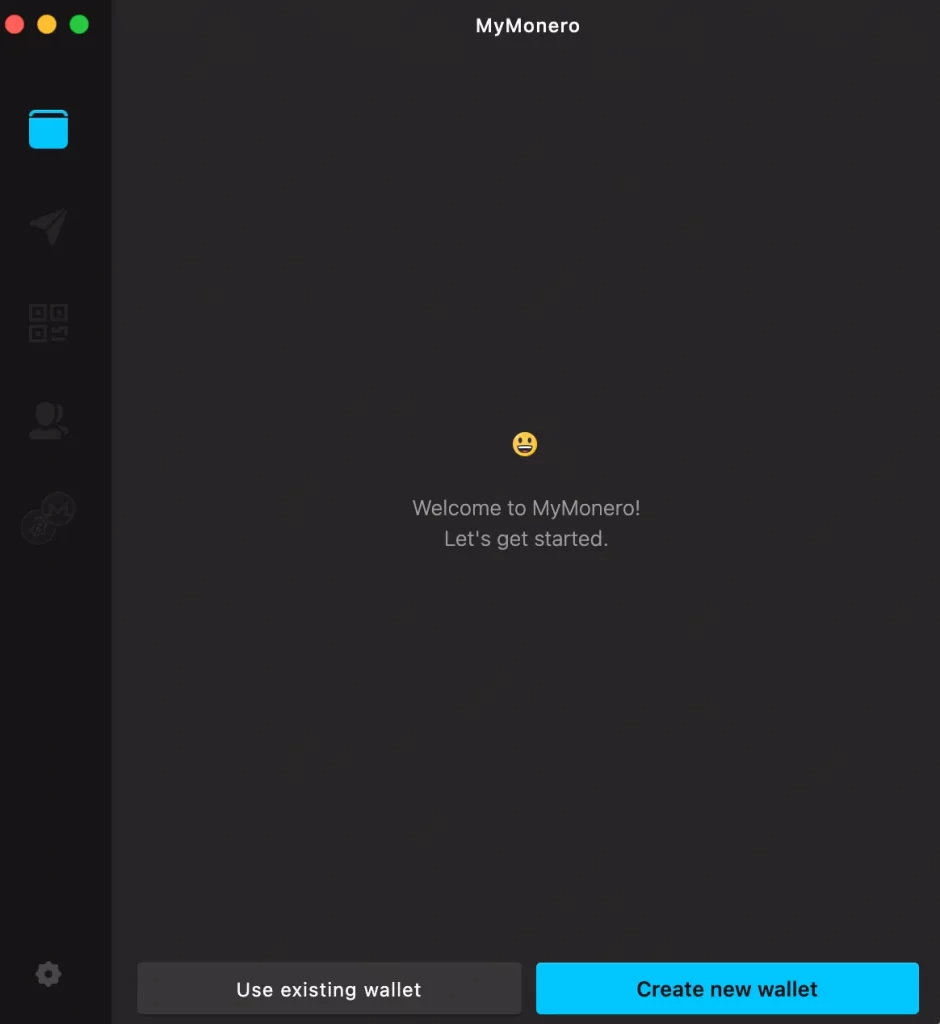
MyMonero will immediately generate a new wallet for you in your browser, including creating a 13- or 25-word mnemonic key for login (MyMonero uses a 13-word seed phrase to log into the web wallet). The site will display your seed phrase and prompt you to save it.
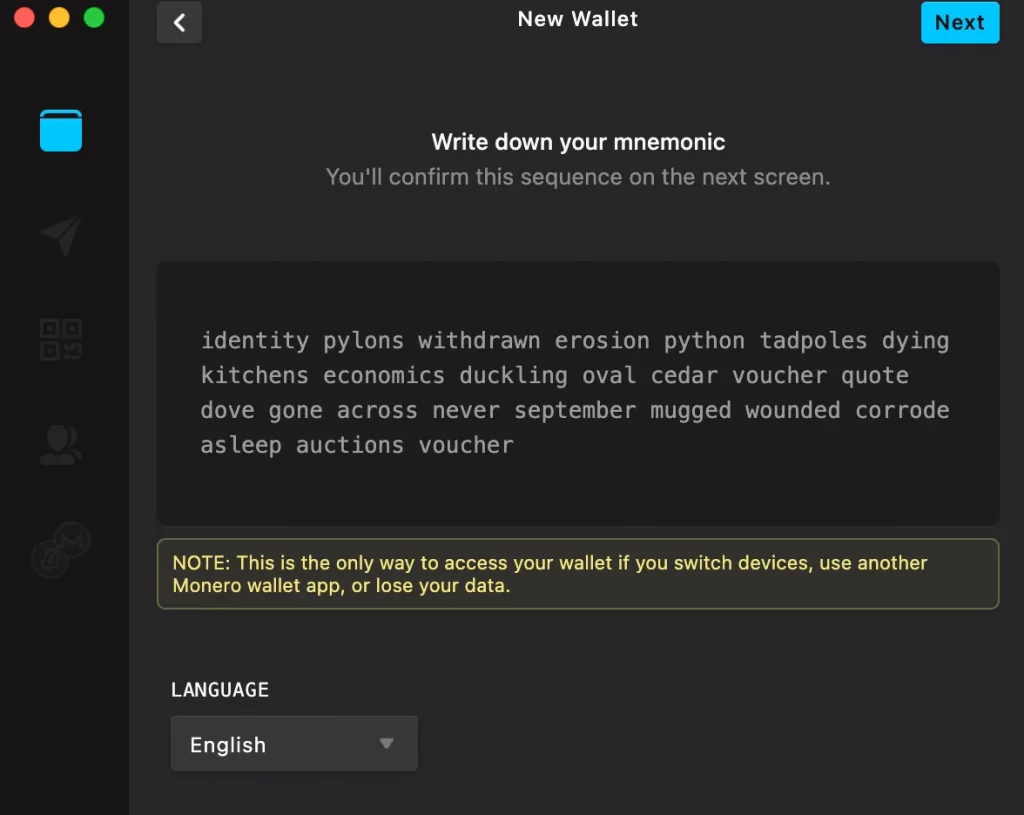
Follow the instructions: write down the mnemonic words on paper. MyMonero will then ask you to confirm your seed phrase by selecting certain words from it (this ensures that you have entered it correctly, as with other wallets).
Logging into your web wallet: Once you have saved and confirmed your mnemonic phrase, you can use it to log in. MyMonero may automatically log you in after creation. If not, simply enter your 13-word mnemonic into the login field to access your wallet. No username or password is required — the seed is your key (MyMonero essentially treats it as an “entry code” to decrypt your wallet.
Best practices for Monero wallet security
Regardless of which type of wallet you choose, certain security measures must be followed to protect your Monero. Here are some key tips:
Protect your seed phrase
This cannot be overstated — your 25-word (or 13-word) mnemonic seed phrase is the ultimate backup for your wallet. Write it down on paper (or metal) and store it in a safe and confidential place. Never share your seed phrase with anyone.
Use official and trusted software
Only download Monero wallet software from official sources, such as the getmonero.org website or official app stores. The Monero community maintains a list of known secure wallets.
Verify downloads and updates
Monero developers provide cryptographic hashes and GPG signatures for wallet software. It is recommended to verify these signatures with every download or update of your desktop wallet.
Set strong passwords/PIN codes
If your wallet application allows (or requires) a password or PIN code, choose a strong one. For the Monero graphical interface, you will set a password for your wallet file — make it strong, unique, and something you won’t forget.
Beware of phishing and scams
Common types of scams include websites or emails that pretend to be official wallet providers and ask you to enter your seed phrase to “confirm” something. Never enter your seed phrase or private keys on any website other than the official MyMonero, and even there, only for your own login.
Conclusion
As a beginner, you can start with a mobile or web wallet to get comfortable, then move on to a desktop or hardware wallet as you gain experience. Whatever you choose, always remember the basics of security: protect your seed phrase, check your software, and be careful online.
Keep up with news about wallet updates and new features on the official Monero website or forums. Maintaining wallet security is an ongoing process. For example, update your wallet app when new security features or patches are released, and periodically review your backup strategy (make sure your seed phrase backups remain intact and accessible to you).
By following these recommendations, you can confidently manage your Monero and enjoy the financial privacy it offers.